To start collecting social registrations with Discord you need to get your Discord app up and running. Here's how:
Create Your App on Discord
1. Sign into Discord at the Discord Apps site

2. Click on New Application

3. Choose a name
Fill in the name in the popup then select Create

4. Fill in your app details
Don't worry about writing a very detailed description, something like "I am creating an app so that I can monitor fans/customers across social networks," should do fine.
Leave the Interactions EndpointURL field empty.
Fill in your details and press the Save changes button.

5. Set up OAuth
Click the "Oauth2" option in the left hand settings menu.
Click the "Add Redirect" button and in the field that appears paste the following: https://theappreciationengine.com/DiscordAuthenticator_Controller
Important
If you're on a custom AE Enterprise plan you'll have a custom domain. Make sure to add it in front. E.g.https://sony.theappreciationengine.com/DiscordAuthenticator_Controller
Then click Save changes

6. Head back to the General Information section and view your Client credentials

Setup Your Discord App in AE
1. Go back to your AE dashboard tab
If you don't have AE open already, open a new tab and log into your AE dashboard account. From Home, click AE Connect, into the application you want to configure, then click the Social Apps tab on its Manage page.
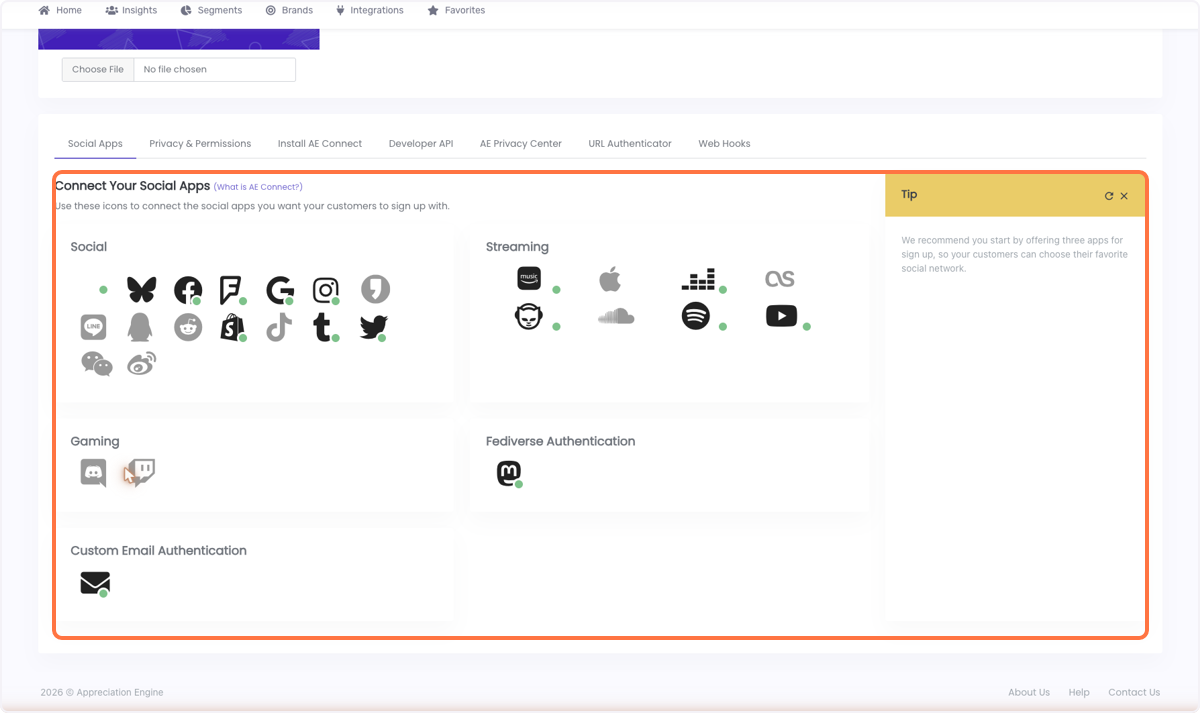
2. In the "Connect Your Social Apps" section, select the Discord icon
Discord is grouped under a Gaming category (alongside Twitch) rather than the general Social section.
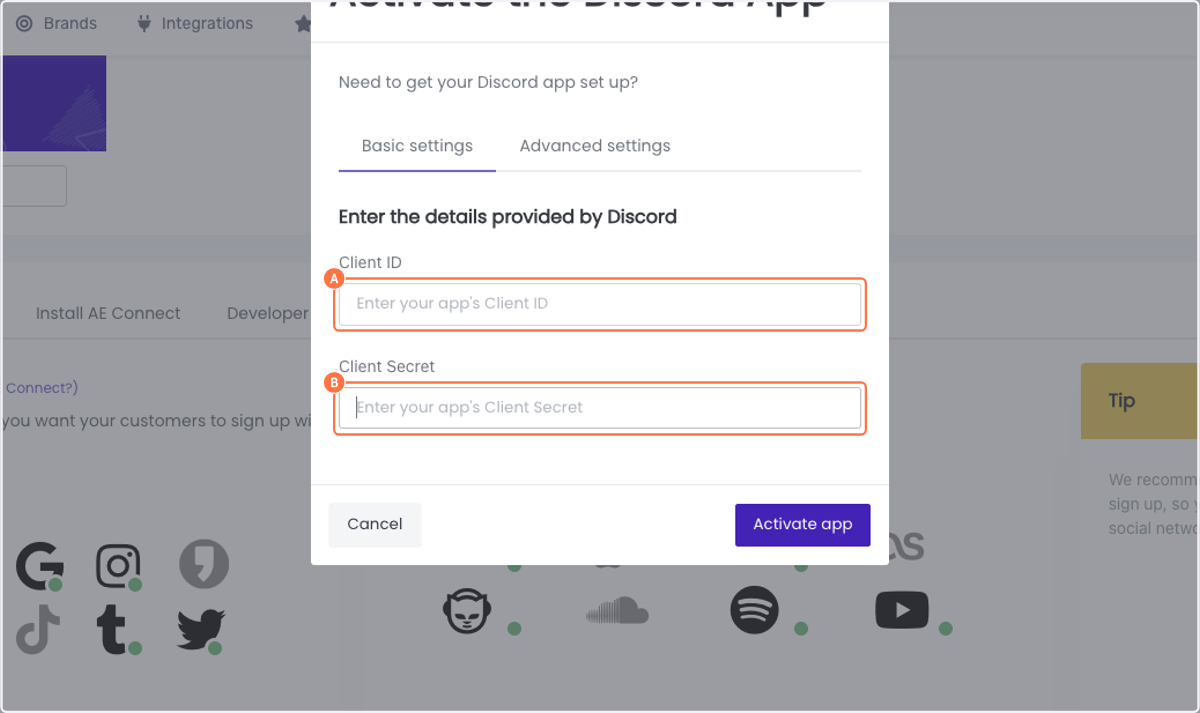
3. Copy your Client ID and Client Secret over to the AE window (Basic settings tab)
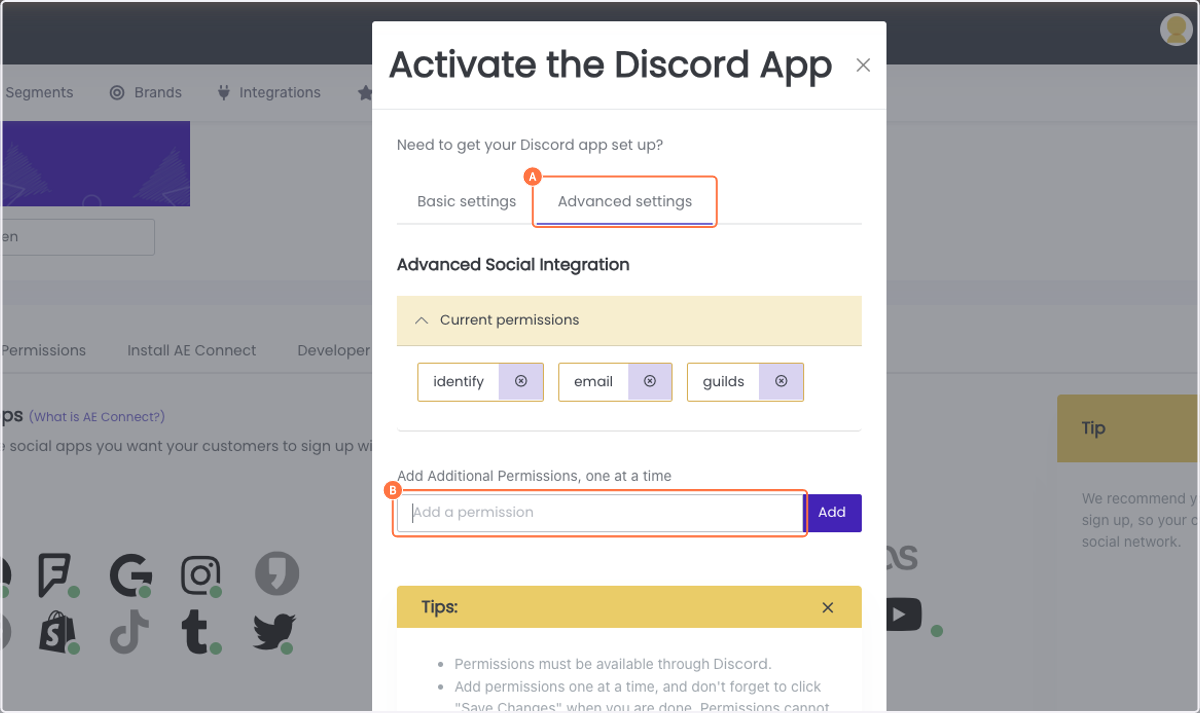
4. Optional: click the Advanced settings tab to review or customize the requested permissions (identify, email, guilds by default) — add additional permissions one at a time if needed
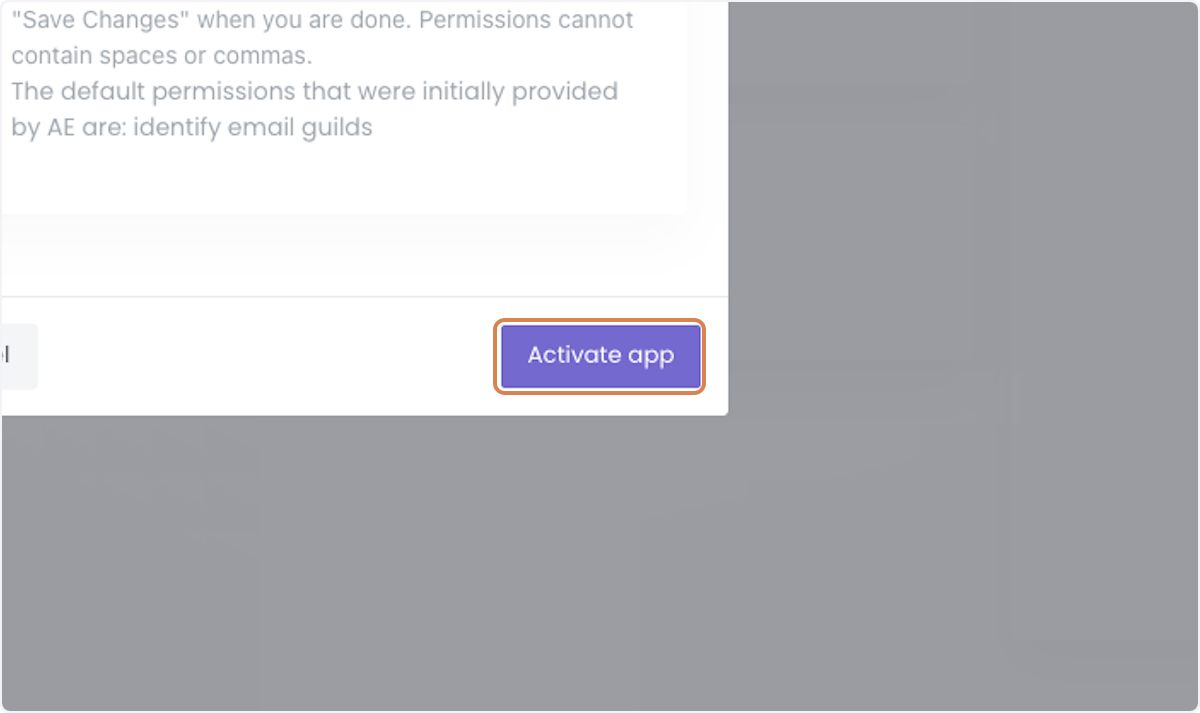
5. Click the Activate app button
6. You can see your Discord app is live with AE
Connect other social networks:
Or choose from the full list.
If you are ready, install AE Connect, our social login solution, into your website.
Was this article helpful?
That’s Great!
Thank you for your feedback
Sorry! We couldn't be helpful
Thank you for your feedback
Feedback sent
We appreciate your effort and will try to fix the article